Wi-Fi Quit at 11:40 P.M. The Cable in Your Junk Drawer Can Save the Deadline
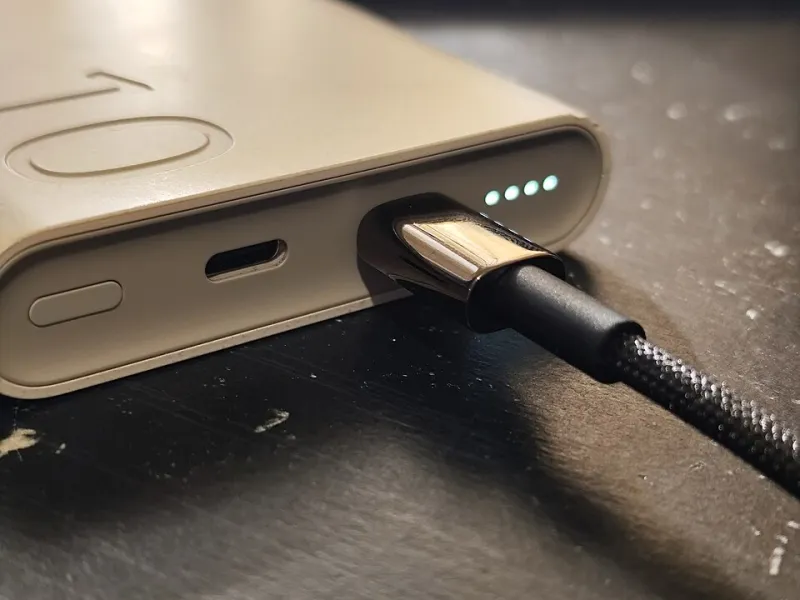
Photo: Logant547, CC BY 4.0, via Wikimedia Commons
It's 11:40 p.m. The file is open, the deck is due at 8 a.m., and the printer is showing full signal bars while refusing to accept a single page. You've already power-cycled the router twice. Stop. There is a cable in a drawer somewhere in your house that solves this in about four minutes, and it does not care what your router thinks.
USB tethering is the most underused move in home printing. It is not a downgrade and it is not permanent. It's a bridge, and tonight it's the bridge you need.
First, Sixty Seconds to Tell the Router From the Printer
You want to know which side of the chain failed, because it changes who you call tomorrow. Do this from the printer's own control panel.
Print the network configuration page (usually buried under Settings, Network, or Wireless, sometimes labeled Network Report or Wireless Test Report). Then read it like a mechanic reads a dipstick:
- No SSID and no IP address listed: the printer never joined. Not a computer problem.
- An IP address starting with 169.254: it tried to join and got no address from the router. Router or signal problem, most likely.
- A normal address like 192.168.x.x but printing still fails: the printer is on the network and something upstream is blocking it.
Next, open the printer's wireless setup wizard and look at the list of available networks. This is the tell.
If the list is completely empty, or the printer can see zero networks while your phone shows nine, the radio inside the printer is suspect. If the list is full of your neighbors' networks and yours won't take the password, that's a router or credentials problem, and no amount of driver reinstalling will fix it.
Do a quick cross-check: can your phone print to it? Can your laptop see it in the printer list? If the printer vanished from every device at once, it left the network. If it's visible everywhere but prints nothing, it's a queue problem on your machine.
The Cable That Actually Works
Most printers take a USB 2.0 Type-A to Type-B cable. The B end is the squarish one that looks like a house. Newer and smaller models sometimes take USB-C to B. That's it. That's the whole shopping list.
Three rules. Keep it under 15 feet, because passive USB gets flaky past that. Skip the charge-only cable from the phone box, since it has no data lines. And plug straight into the computer for the first test, not into a hub or a dock.
If you don't own one, this is the one cable worth keeping in the house permanently. They're cheap, and they're the difference between missing a deadline and not.
Windows: Add the USB Queue Without Touching the Old One
Plug the cable into the printer and the PC. You should hear the device chime within a few seconds.
On Windows 11, go to Settings, then Bluetooth and devices, then Printers and scanners. Choose Add device. If the printer shows up, great. If it doesn't, choose Add manually, pick the option that says your printer is a little older and offers to help you find it, and select the USB port that just appeared (it'll read something like USB001).
One important habit: leave the existing Wi-Fi queue alone. Add the USB one as a second printer rather than deleting the first. That way, when the network comes back, you aren't rebuilding anything, and you can tell at a glance which queue you're sending to. Rename the new one something obvious, like PRINTER USB.
Expect Windows to install a generic driver automatically. That's fine for printing. If scanning or ink levels don't work, you're in the driver-free half of this guide and you'll want the manufacturer's full package.
Mac: Usually Zero Drivers, Occasionally One
On current macOS, plug in and open System Settings, then Printers and Scanners, then Add Printer. The printer should appear in the list under USB, and the Use field should default to AirPrint. Accept it and print.
If nothing shows up, check the cable first, then the hub, then reset the printing system: Control-click inside the printer list and choose Reset printing system. That clears out stale queues that occasionally block new hardware from registering.
Driver-Free Versus Full Package: What You Lose
Driver-free printing (AirPrint, IPP, Mopria) works out of the box on most printers made in the last several years. It prints documents and photos. What it usually doesn't do is talk to the scanner, report ink or toner levels accurately, run printhead alignment, or show supply ordering prompts.
If you need scanning to computer, ink level monitoring, or maintenance utilities, grab the full package from the manufacturer's own support page, entered by exact model number. Not a driver-aggregator site, and not the CD that came in the box six years ago.
Now the Useful Part: Is This a Warranty Call?
Here's the rule of thumb. If the printer prints perfectly over USB but cannot see a single wireless network after a full network reset, the Wi-Fi module is the problem, and that's a hardware warranty conversation. Have the model number, the serial number, your purchase date, and a short list of what you already tried ready before you dial. That list is what keeps you off hold twice.
If the printer sees the network but won't join, or joins and drops every few hours, that's a router or interference issue. Move it off the microwave, split the 2.4 and 5 GHz bands if your router lets you, and give the printer a DHCP reservation. That's a router support call, not a printer call.
Make the Cable Part of the Setup
Tonight, print the deck. Tomorrow, route the cable behind the desk, leave it connected, and just switch queues when wireless misbehaves. Test the USB queue once a month so you know it still works before you need it. Keep a spare cable in your laptop bag if you travel with a portable printer.
Wireless is a convenience. The cable is the guarantee.