Your Printer Might Be Fine. Your Power Strip Might Not Be.
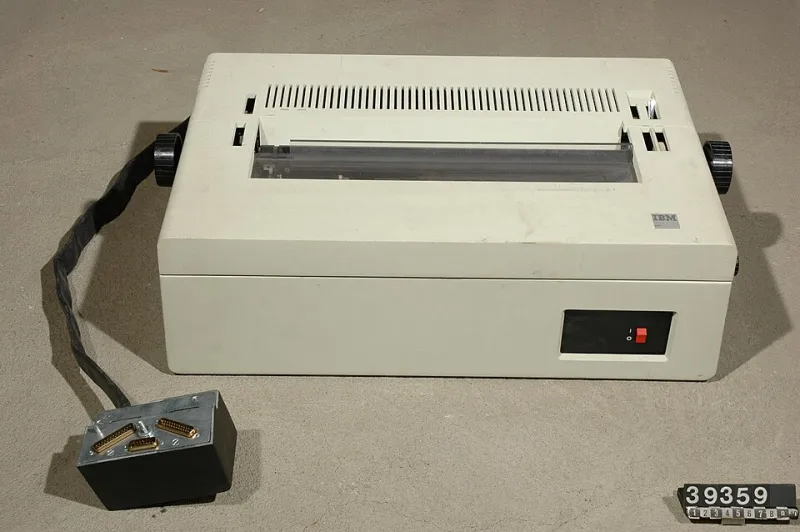
Photo: Tekniska museet, CC BY 4.0, via Wikimedia Commons
You hit the power button. Nothing. Or the printer wakes up, flashes a few lights, and goes right back to sleep. Before you start hunting for a support number, do one thing that takes less time than waiting on hold: plug the printer straight into a wall outlet.
As of November 2026, this is still one of the first things many HP, Canon, Epson, and Brother reps ask about. It is not script filler. A surge protector, a switched outlet, or a crowded circuit can create exactly the kind of strange power behavior that looks like a dead printer.
Why support asks about the wall outlet
Printers are not steady little appliances. A laser printer can pull a big burst of current when it warms up. An inkjet can do the same when it wakes from sleep, runs a cleaning cycle, or starts a duplex job. If the printer is sharing a strip with a monitor, a space heater, a lamp, and a phone charger, the voltage can sag at the wrong moment.
That can show up as a printer that looks offline, drops its network connection, reboots in a loop, or refuses to turn on at all. The printer gets blamed, but the power path is the problem.
A few common culprits:
- An old or overloaded surge protector that no longer passes enough power.
- A switched outlet that got turned off by accident.
- A daisy chain of extension cords and power strips.
- A GFCI outlet that has tripped.
- A circuit that is already carrying a heavy load.
- A UPS battery backup that cannot handle the printer's startup draw.
None of those require a printer repair. They require a two-minute test.
The two-minute direct-wall test
Do this safely and do not skip the obvious stuff.
- Turn the printer off with its power button. Wait about 30 seconds.
- Unplug the printer's power cord from the surge protector or extension cord. Leave the other devices alone if you can.
- Plug the printer directly into a wall outlet that is not controlled by a light switch. Do not use another extension cord or a two-prong adapter.
- Turn the printer on. Watch the lights, listen for normal startup sounds, and give it a minute to reach ready status.
- If it powers on, try a test print or a copy. If it is a network printer, wait for the network light or display to settle before you declare victory.
- If it still does nothing, try one other wall outlet on a different circuit if that is easy and safe. Do not move the printer near water or block a doorway to do it.
If an outlet feels warm, looks discolored, buzzes, or smells like burning, stop. That is an electrician problem, not a printer support problem.
What each result means
It works at the wall but not through the strip
The power strip or its switch is the likely problem. Replace the strip, move the printer to a different outlet, or stop using that strip for the printer. You do not need printer support for this. You need a better power path.
It works at the wall and now works on the strip too
That points to a loose plug, an intermittent strip, or a outlet that is marginal. Watch it for a few days. If the same symptoms come back, replace the strip instead of trusting it.
It gets no power at the wall either
Test the outlet with a lamp or phone charger. If the outlet works but the printer does not, the printer's power cord, power supply, or internal hardware is suspect. That is a real support call. If the outlet does not work, check the breaker or GFCI before you blame the printer.
It starts a boot loop at the wall
A printer that powers on, shuts off, and repeats is not usually a strip problem anymore. It can be a failing power supply, a firmware issue, or a board problem. Have the model number and the exact light pattern ready when you call.
It turns on but stays offline
Good news: you ruled out a basic power failure. The problem is probably network-related, not electrical. You can move on to router checks, Wi-Fi setup, or a USB cable test. If you call support, say clearly that the printer powers on directly at the wall and only the connection is failing.
It prints one page and dies
That can be a thermal issue, a power supply that cannot handle the load, or a sleep and wake problem. It is worth a support call, especially if the printer is under warranty.
What to tell HP, Canon, Epson, or Brother
Support calls go faster when you skip the vague version. Instead of saying my printer will not turn on, give the rep the test result.
Have these details ready:
- The exact model number, not just the series name.
- The serial number from the sticker on the printer.
- What happens when plugged directly into the wall: no lights, blinking lights, boot loop, error code, or ready but offline.
- Whether the outlet was tested with another device.
- Whether the printer was on a surge protector, UPS, extension cord, or switched outlet.
- Any error code or blinking light pattern. A short phone video helps.
- What you already tried: power cycle, different outlet, new cord, firmware update, or network reset.
A simple script helps: I plugged the printer directly into a wall outlet that I confirmed works with another device. It still does not power on, and the green light blinks three times. That tells the rep you did the basic test and gives them a real symptom to work with.
If you need the right US contact route, start with our Support Directory at printertechsupportnumbers.com/support-directory. It is a faster, safer starting point than whatever number shows up in a random search result.
The bottom line
Do not call printer support until you have bypassed the power strip. It takes two minutes, it rules out a whole category of phantom problems, and it gives you a cleaner story if you still need help. If the printer works at the wall, spend your money on a new surge protector, not a repair. If it fails at the wall, you now have the exact details that make a support call shorter.